Video generatorUpdated Oct 20, 2026

AI Video Generator Black Friday 2026

Video is the part of Black Friday shopping where the numbers get fuzzy. A pack advertises a large credit number, but a five-second clip can consume ten times the credits of an image. The useful comparison is cost per finished clip, not cost per credit.

  • Browse without signing up
  • Credit costs are shown before you generate
  • Works on desktop and mobile
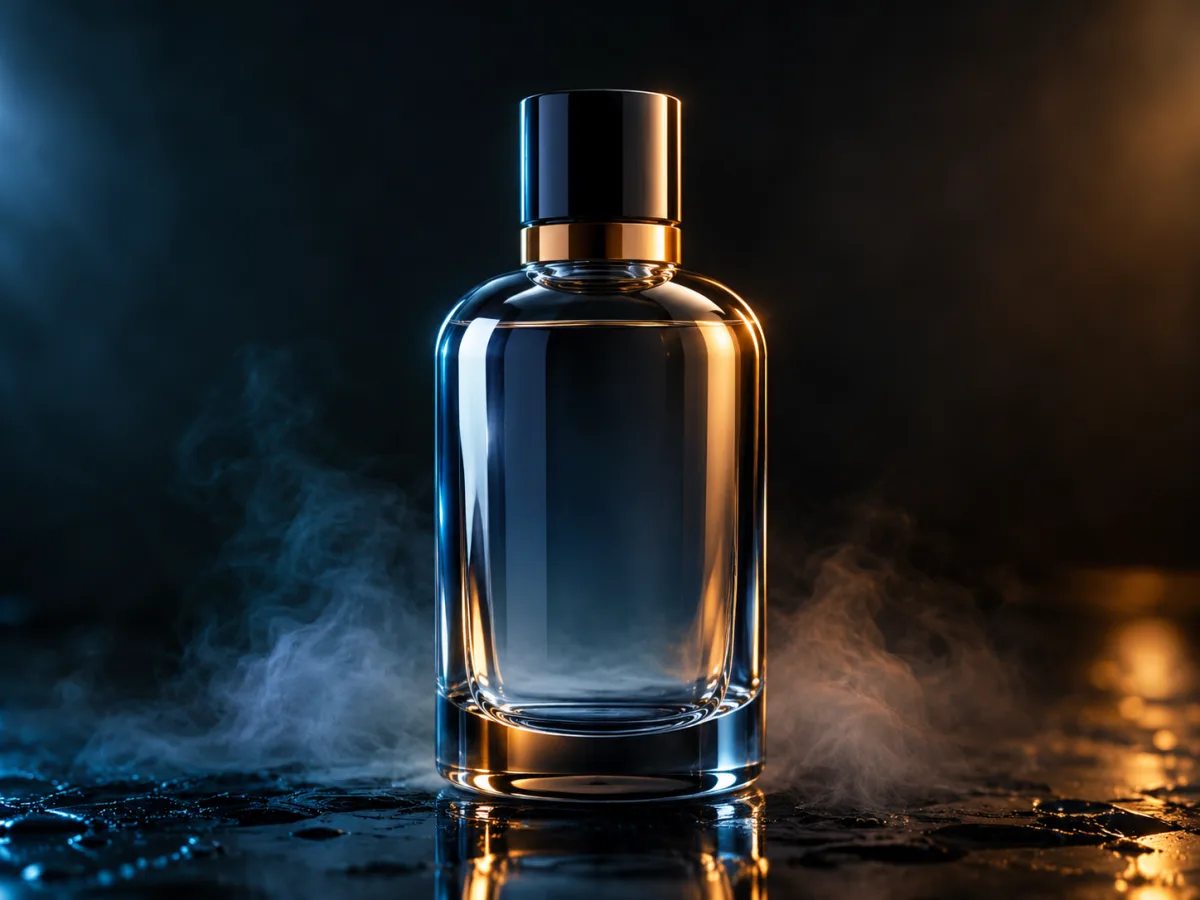
Cinematic product video still with a slow orbiting camera and mist at the base
Cinematic Product Motion · Video generator

Quick answer

AI video is priced per second, so the cost per finished clip matters more than the pack price. At Text to PSD, a five-second 720p fast image-to-video clip is about 50 credits. Test the motion on a still image before committing to a longer render.

Written and tested by the Text to PSD product teamStandard image: 8 credits · Browser tools are free

Every example on this page was generated with GPT Image 2 using the same look described in the prompt. Example images are not customer photos.

Looks you can generate

This page explains how image-to-video works, what a short clip costs and what to test before you buy. It is written for people who already have a still image and want to see whether motion improves it.

Cinematic product still with a dark background and mist at the base

Cinematic Product Motion

A five-second product orbit with drifting mist and a moving highlight. A practical test for ecommerce video.

Prompt recipe

Copy this prompt, open the workspace, upload your photo, and paste it into the prompt field.

Animate the provided product still as a five-second premium commercial. Keep the product shape, label-free surface, reflections and background identical. Add a slow 30-degree orbit around the product, a gentle rise of mist at the base, a subtle moving highlight across the glass and a smooth push-in. Keep the motion steady, the lighting consistent and the product perfectly stable. Do not morph the product, add text, change the background or cut to another scene. No watermarks.
Try this look
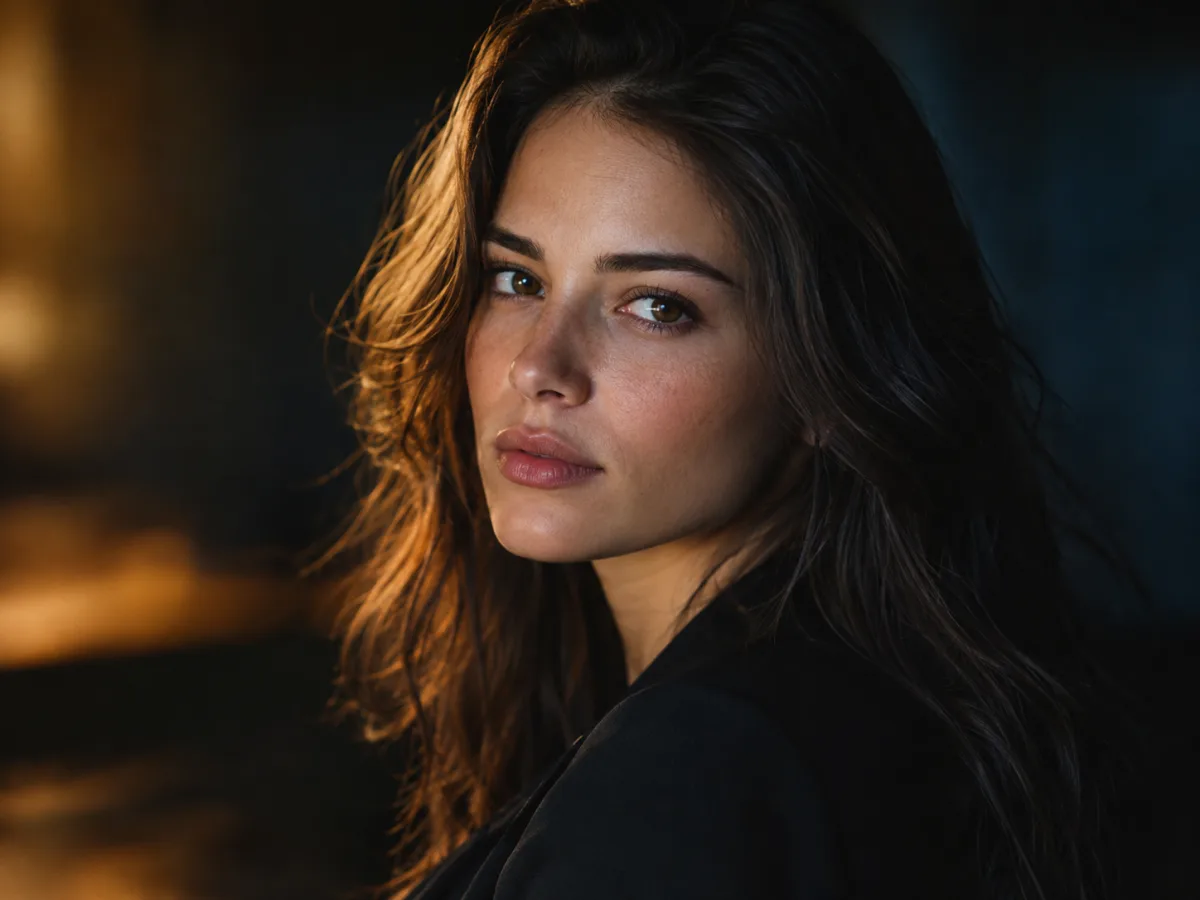
Cinematic portrait still with soft light and a dark background

Portrait Micro-Motion

A five-second portrait loop with a slow head turn, a blink and drifting hair. Built to keep the face stable.

Prompt recipe

Copy this prompt, open the workspace, upload your photo, and paste it into the prompt field.

Animate the provided portrait as a five-second cinematic loop. Preserve the face, hair, clothing and background exactly. Add a slow head turn toward the camera, a natural blink, a slight shoulder shift and softly drifting hair. Use a very slow parallax camera move and a gentle light shift across the cheek. Keep facial anatomy stable and motion subtle and believable. Do not change identity, add people, change the outfit or cut scenes. No text or watermarks.
Try this look

How it works

  1. Step 1

    Start from a strong still

    Image-to-video preserves the first frame. A sharp, well-lit still gives the model a better foundation than a blurry photo.

  2. Step 2

    Describe motion, not a new scene

    Say what stays the same first, then describe the head, hair, clothing, background and camera in that order.

  3. Step 3

    Test short, then extend

    Render a five-second clip at the lowest useful resolution. If the motion works, re-render at a higher resolution or a longer duration.

What image-to-video is good at

Image-to-video is best at adding restrained motion to an image that already works: a head turn, a blink, drifting fog, a flickering light or a slow camera push. It is not a replacement for a filmed scene with complex action.

For product video, the strongest results are slow orbits, rising mist and moving highlights. For portraits, the strongest results are small head movements and natural blinks. Both keep the subject stable.

  • Slow camera moves instead of fast cuts
  • One or two motions per clip
  • Consistent lighting for the whole duration
  • A clear subject with a simple background

The credit math for short clips

At 720p fast, image-to-video costs 10 credits per second. A five-second clip is about 50 credits. A fifteen-second clip is about 150 credits, before retries.

A 500-credit pack covers about ten five-second clips at 720p, or more at 480p. If you are testing a motion idea, use 480p and a shorter duration, then spend the credits on the final render.

What to test before you buy

Test one product and one face. Product clips reveal whether the model can keep edges and reflections stable. Portrait clips reveal whether it can keep a face recognizable through motion.

Also test the aspect ratio you need. A vertical clip for social and a wide clip for a website behave differently, especially at the edges of the frame.

Why we do not promise a discount

Any active seasonal offer will be stated on this page and on the Pricing page with dates and eligibility. If no offer is shown, the listed price applies. A permanent discount is just the price with extra steps.

Buy the pack that covers a real project. If you need one five-second clip, buy the smallest pack that covers it and keep the rest for the next idea.

Who it is for

  • Adding motion to product photos
  • Making short social clips from still images
  • Testing a video workflow before a subscription
  • Budgeting credits for a holiday campaign

Frequently asked questions

How much does a five-second video cost?

At 720p fast, image-to-video costs 10 credits per second, so a five-second clip is about 50 credits. A fifteen-second clip is about 150 credits. Resolution, model and duration can change the cost.

Can I use my own image?

Yes. Upload an image you own or have permission to use. The model uses it as the first frame and preserves its composition while adding motion.

Why does the face change during the video?

Large head movements and fast camera moves give the model more room to drift. Use a small head turn, a blink and a slow camera push, and keep the clip short.

Is audio included?

Audio options depend on the supported model. For most short social clips, adding music or a sound effect in an editor is more controllable than generated audio.

Do failed renders cost credits?

If a render fails, contact support with the task id and we will review the charge. Retry with a shorter duration or a simpler prompt.

Can I use the video commercially?

Commercial use is allowed within the Terms of Service. Make sure you own or have permission to use the source image, and do not imply an official brand or film association.

Use a photo of yourself or one you have permission to use. Do not upload images of other people without consent.

See the motion before you commit to a render

Start from a still you own, test a five-second clip and scale up only when the motion works.