Video generatorUpdated Oct 20, 2026

Halloween AI Video Generator

A still portrait shows the costume. A five-second clip shows the mood. The difference is usually one small motion: a head turn, a blink, fog crossing the frame or a slow camera push. That is exactly what image-to-video is good at.

  • Browse without signing up
  • Credit costs are shown before you generate
  • Works on desktop and mobile
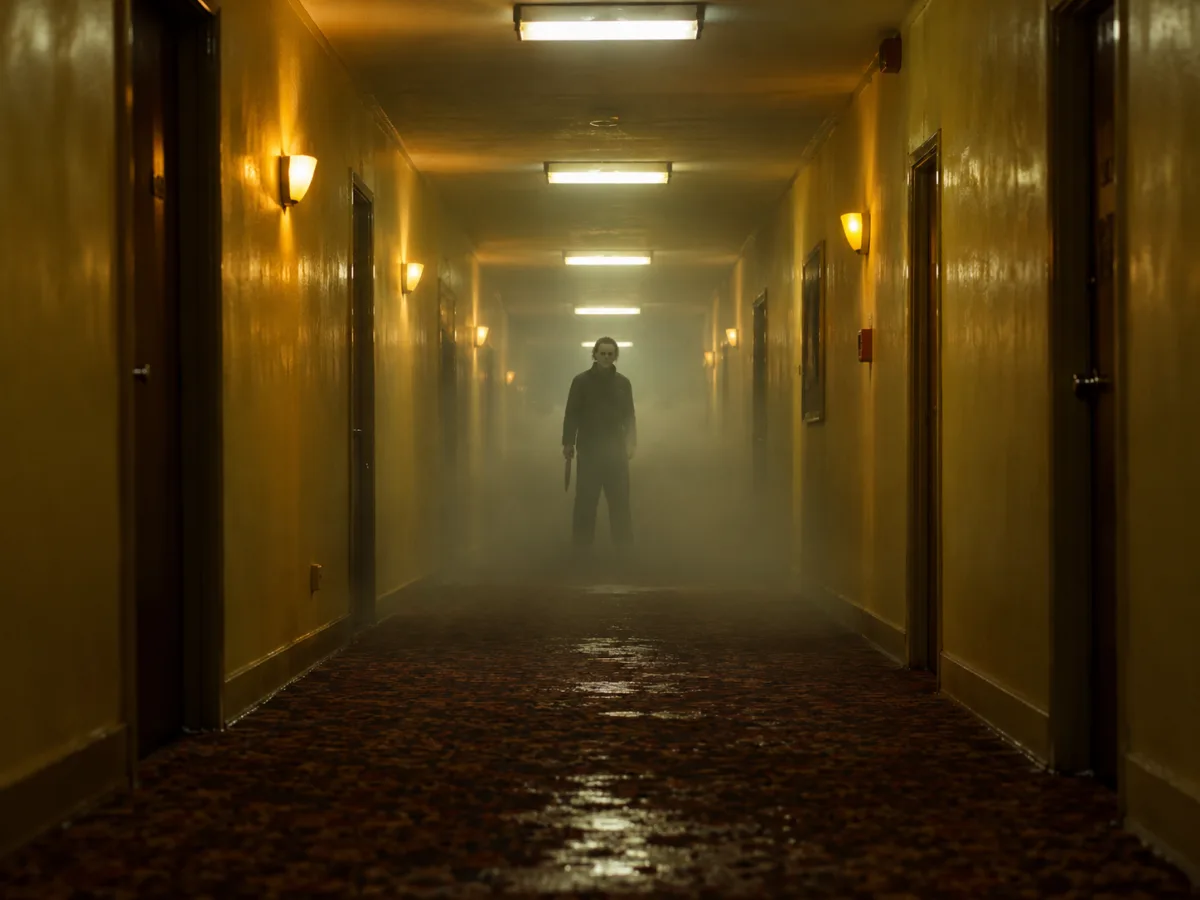
Cinematic Halloween video still of a foggy corridor with a costumed figure and warm lantern light
Backrooms Corridor · Video generator

Quick answer

The Halloween AI video generator animates a still image instead of inventing a new scene. Upload a costume portrait, add a motion prompt, and get a short clip with a head turn, moving hair, drifting fog or a slow camera push. It is the natural next step after a costume preview.

Written and tested by the Text to PSD product teamStandard image: 8 credits · Browser tools are free

Every example on this page was generated with GPT Image 2 using the same look described in the prompt. Example images are not customer photos.

Looks you can generate

This page is built around restrained motion. Big action is harder to control and easier to break. Gentle movement keeps the face stable, the costume readable and the result usable as a Story, a Reel or a looped background.

Cinematic still of a costumed figure in a foggy backrooms-style corridor with warm lights

Backrooms Corridor

A slow head turn in a foggy corridor with a smooth push-in. The motion is small, so the face and costume stay stable.

Prompt recipe

Copy this prompt, open the workspace, upload your photo, and paste it into the prompt field.

Use the provided image as the exact visual reference and starting composition. Create a continuous five-second cinematic Halloween portrait animation. Keep the subject's recognizable face, costume, hairstyle and body proportions consistent with the reference. The subject slowly turns their head toward the camera with a subtle mysterious expression. A gentle breeze moves loose hair strands and the edges of the clothing. Soft fog drifts through the corridor behind them. The camera performs a slow, smooth push-in. Maintain realistic motion, stable anatomy and consistent lighting. Do not change the person's identity, replace the costume, add characters or introduce sudden scene cuts. No text or watermarks.
Try this look
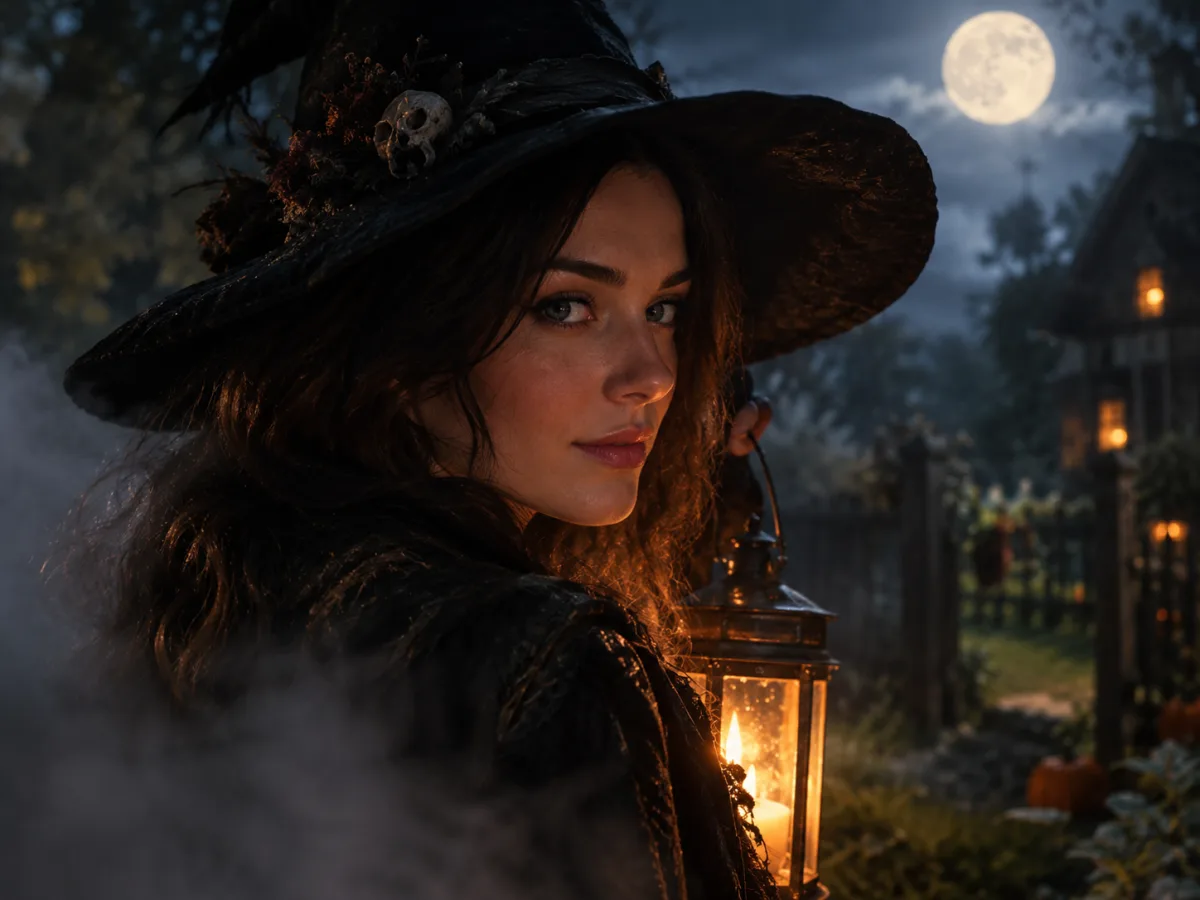
Moonlit Halloween portrait still with warm lantern light and soft fog

Moonlit Turn

A close-up with a natural blink, swaying hair and flickering lantern light. Built for portraits that already have strong lighting.

Prompt recipe

Copy this prompt, open the workspace, upload your photo, and paste it into the prompt field.

Animate the provided portrait as a five-second cinematic Halloween close-up. Preserve the face, makeup, costume and background exactly. Add a slow head turn, a natural blink, gently swaying hair and a soft breath. A thin layer of fog crosses the foreground while warm lantern light flickers on the subject's cheek. Keep the camera almost still with a very slow parallax drift. Use realistic skin texture, stable facial anatomy and restrained, believable motion. Do not morph the face, add people, change the outfit or cut to another scene. No text or watermarks.
Try this look

How it works

  1. Step 1

    Generate or upload a portrait

    Use a costume image from the image generator, or upload a photo you already have. Keep the face sharp and the framing simple.

  2. Step 2

    Add a motion prompt

    Describe one or two motions and one camera move. Head turn, blink, hair movement, fog drift and a slow push-in are the safest combination.

  3. Step 3

    Choose duration and resolution

    Start short. A five-second 720p clip is enough to test the idea before committing to a longer render.

What makes a Halloween video look cinematic

Cinematic does not mean fast. It means controlled: one clear subject, one light direction, one camera move and a background that supports the mood. Fog, practical lights and a shallow depth of field do more than a dozen fast cuts.

The strongest Halloween clips usually have a single reveal. The subject turns toward the camera, the lantern flickers, or the fog parts. Give the viewer one thing to notice and let the rest stay still.

  • Use a slow push-in instead of a zoom
  • Keep the face visible for the whole clip
  • Add fog and practical lights for depth
  • Avoid scene cuts and costume changes inside one short clip

Prompts for image-to-video, not text-to-video

An image-to-video prompt should describe motion, not a new scene. Say what stays the same first, then describe what moves. If you describe a new location or a new outfit, the model may rebuild the image and lose the identity.

The prompts on this page start with the reference image and list the motion in order: head, hair, clothing, background, camera. That order gives the model a clear priority when it has to choose what to animate.

How long should the clip be?

Five seconds is the practical starting point for social video. It loops cleanly, it is long enough to read the costume and short enough to keep the motion stable. Fifteen seconds is available, but it needs a stronger motion plan or the result starts to drift.

If you need a longer sequence, generate two or three short clips with different motions and edit them together. That gives you more control than one long render.

Cost and quality

Video uses more credits than images because it renders many frames. At the time of writing, a 720p fast image-to-video render costs 10 credits per second, so a five-second clip is about 50 credits. Prices and model options are shown in the workspace before you confirm.

Start at 480p if you are testing a motion idea, then re-render at 720p once the prompt works. That keeps experiments cheap and the final output clean.

Who it is for

  • Turning a costume portrait into a Story or Reel
  • Making a looped background for a Halloween party screen
  • Testing a motion idea before a longer shoot
  • Adding movement to a couple or pet costume photo

Frequently asked questions

Can I animate any photo?

You can, but the best results come from sharp images with one clear subject and simple framing. Blurry photos, extreme angles and crowded scenes give the model more room to drift.

Will the face stay the same?

Restrained motion keeps the face stable. Large head movements, profile turns and fast camera moves are more likely to distort. Start with a small turn or a blink.

Does it generate audio?

The workspace has audio options for supported video models. For a short Halloween clip, ambient music or a sound effect added in your editor is often more controllable than generated audio.

How much does a clip cost?

Credits depend on resolution and duration. A five-second 720p fast image-to-video clip is about 50 credits. The exact cost is shown before you confirm the render.

Can I use the video on social media?

Yes for personal and editorial use, provided you own or have permission to use the source image. Check the Terms of Service for commercial use and do not imply an official film or brand association.

What if the render fails?

If a task fails, contact support with the task id and we will review the credit charge. Retry with a shorter duration or a simpler motion prompt, then increase duration once the motion works.

Use a photo of yourself or one you have permission to use. Do not upload images of other people without consent.

Give your Halloween portrait five seconds of life

Upload a still, describe one small motion, and render a short clip you can post.